Disclaimer: This is an independent learning project and is not affiliated with or endorsed by Zotero or its developers. Always check the official Zotero documentation for the latest instructions.
Add PDFs and retrieve metadata
What you’ll do
By the end you’ll have turned at least one stray PDF from your computer into a proper Zotero item with title, authors and year.
Why it matters
Papers arrive as loose PDFs — from email, a supervisor, or before you installed the connector. Until they have metadata, you can’t cite them, and “cite a PDF by its filename” is exactly the habit this academy exists to prevent.
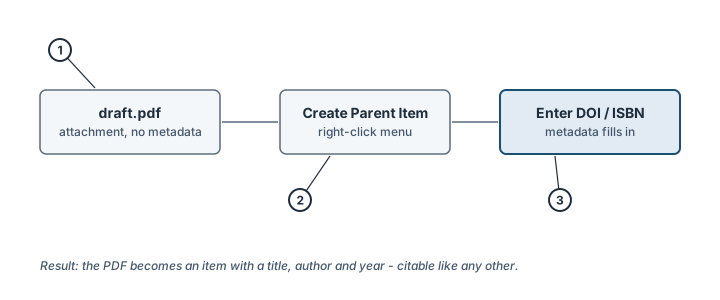
Giving a stray PDF a parent item (1: drag in, 2: create parent, 3: add identifier). Illustration, not an actual screenshot.</figcaption> </figure>
Steps
- Drag the PDF into Zotero — onto the middle column of the library. It becomes a standalone attachment (a plain file with no metadata). Zotero usually tries to retrieve metadata on its own after the drag — if it succeeds, the item fills in by itself; if it can’t (scans often can’t), the PDF stays a plain attachment and you continue with step 2.
- Right-click the PDF → Create Parent Item. Zotero creates an empty item that the PDF is attached to.
- Enter an identifier. Type the article’s DOI (or the book’s ISBN) into the field and press Enter. Zotero looks up the metadata and fills in title, authors, year and journal.
- No identifier handy? Choose Manual Entry in the same dialog and fill in the essentials yourself, or drop the PDF onto the browser save button while viewing the article’s page.
- Other quick methods (from the official docs): the toolbar’s Add Item by Identifier button (the magic-wand icon) creates items from pasted DOIs, ISBNs, PubMed IDs or arXiv IDs; New Item creates an empty item of any type for truly offline sources.
Check it worked
The item in the middle column now shows a title and author (not a filename), and the PDF sits under the item as a child attachment. Clicking the item shows complete metadata in the right pane.
If it didn’t work
- “Retrieving metadata…” fails — the PDF may be a scan without embedded identifiers: create the parent item and enter metadata manually (step 4).
- Wrong metadata retrieved (rare, but happens with preprints) — edit the fields directly in the right pane; Zotero remembers your corrections.
- You’d rather import a whole folder or another reference manager’s library → official docs: importing from other tools
Last verified against Zotero 10.0.6 documentation on 2026-10-25. Zotero's interface changes between versions — if a step does not match what you see, check the official documentation linked above and report the lesson via the “Report an outdated lesson” issue template.