Disclaimer: This is an independent learning project and is not affiliated with or endorsed by Zotero or its developers. Always check the official Zotero documentation for the latest instructions.
Annotate PDFs and extract notes
What you’ll do
By the end you’ll have highlighted a PDF, extracted all annotations into a single note, and used that note’s citations in a document.
Why it matters
Reading without capture is re-reading. The built-in reader stores annotations in Zotero — linked to the exact page — so your highlights become quotable, citable material instead of a yellow blur in some other app’s folder.
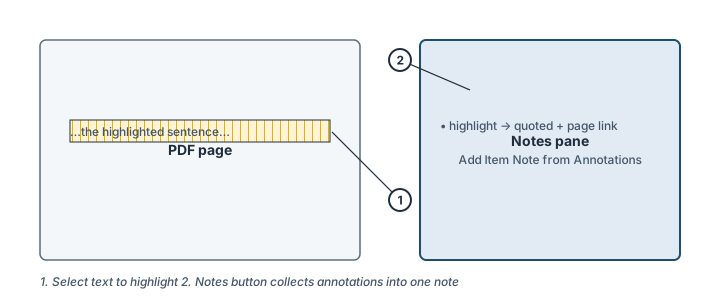
Highlight on the page (1); the Notes pane collects annotations (2). Illustration, not an actual screenshot.</figcaption> </figure>
Steps
- Open the PDF: double-click the item in your library — it opens in Zotero’s built-in reader.
- Highlight: select text and click a color in the popup (or click the highlighter tool first to “lock” the color for repeated highlights).
- Add a thought: click an annotation and type in its comment field — later you’ll be glad the argument you had is attached to the quote.
- Open the Notes pane: click Notes (top right of the reader), then the + and choose Add Item Note from Annotations. Zotero creates one note containing every highlight and comment, each with a link back to the page.
- Write from the note: open the note in the left pane, copy a quotation — or click the annotation’s citation in the note and drag it into a document with the plugin’s Quick Copy. Annotations can also be dragged individually from the reader’s sidebar into any note.
- Know the one big rule: annotations live in the Zotero database, not inside the PDF file. To share a PDF with annotations visible in other readers, use Export a PDF (right-click the item) or export with annotations embedded.
Check it worked
Your item has a note (visible in the right pane’s Notes tab) listing every highlight with page links — and clicking one jumps to the exact spot in the PDF.
If it didn’t work
- Highlighting acts oddly on a scanned PDF — image-based scans can’t be text-selected; run OCR first (outside Zotero) or take notes manually.
- Your colleague’s annotations in a shared PDF confuse you — that’s the group workflow; see Group libraries.
- Reader misbehaves (cursor jumps while typing annotation notes, highlights inconsistent) → these are known product bugs in the support data, not your setup: check the Zotero forums before re-installing anything.
Last verified against Zotero 10.0.6 documentation on 2026-10-25. Zotero's interface changes between versions — if a step does not match what you see, check the official documentation linked above and report the lesson via the “Report an outdated lesson” issue template.