Disclaimer: This is an independent learning project and is not affiliated with or endorsed by Zotero or its developers. Always check the official Zotero documentation for the latest instructions.
Insert citations and choose a style
What you’ll do
By the end you’ll have inserted your first citation into a document in the citation style your program requires — milestone M3, the academy’s headline activation event.
Why it matters
One click captures the citation with its data, so the bibliography in lesson 7 builds itself. And because the style is applied at insert time, switching from APA to Chicago later is a settings change — not a rewrite.
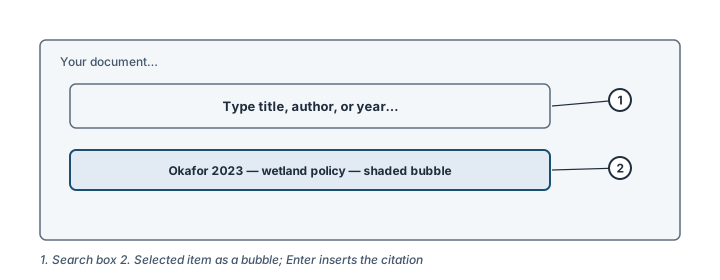
The citation dialog: search (1), select (2), Enter. Illustration, not an actual screenshot.</figcaption> </figure>
Steps
- Set the style first: in your document, click Document Preferences in the Zotero tab and choose the style your program requires (APA 7, Chicago 18, your journal’s style — any installed style). Don’t see it? Manage styles… opens thousands more from the style repository.
- Place the cursor where the citation belongs.
- Click Add/Edit Citation. A search dialog appears.
- Find the item: type part of a title, an author’s last name, or a year. Select the item — it appears as a shaded bubble.
- Add a page number (for direct quotes): type
p. 34(or just34) inside the search box, before pressing Enter. Zotero attaches it correctly for your style. - Cite two sources at once: without pressing Enter, keep typing the next item’s author/title — both become bubbles in one citation.
- Press Enter. The formatted citation appears at the cursor.
- Narrative citation? (“As Okafor (2023) argues…”) Click the inserted citation bubble, tick Omit Author, and type the author into your sentence text.
Check it worked
The citation appears in the correct style for your document — for APA, something like (Nguyen, 2024); for a numbered style, [1]. Click it and a bubble opens showing the underlying item.
If it didn’t work
- You see
ADDIN ZOTERO_ITEMcodes instead of a citation → troubleshooting: Citations show as field codes or won’t update - The citation shows “Anonymous” or a wrong year — fix the item in Zotero first, then press Refresh in the Zotero tab; see troubleshooting flow 4
- Style question (“it puts a period where my program forbids one”) → Fix common citation formatting errors
Last verified against Zotero 10.0.6 documentation on 2026-10-25. Zotero's interface changes between versions — if a step does not match what you see, check the official documentation linked above and report the lesson via the “Report an outdated lesson” issue template.