Disclaimer: This is an independent learning project and is not affiliated with or endorsed by Zotero or its developers. Always check the official Zotero documentation for the latest instructions.
Generate and update your bibliography
What you’ll do
By the end you’ll have a bibliography at the end of your document that updates automatically — milestone M4.
Why it matters
The bibliography is the deliverable your program actually checks. Zotero builds it from the citations you inserted — so it can’t forget a source you cited, and it re-formats itself when your style changes.
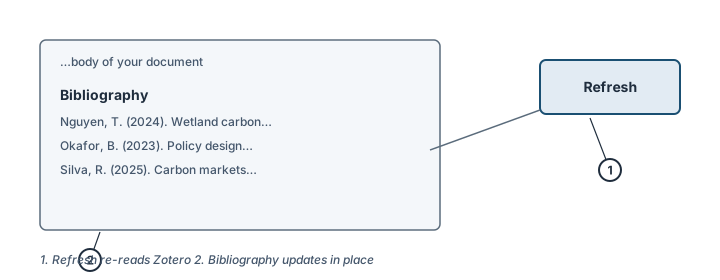
Refresh re-reads Zotero (1) and the bibliography updates in place (2). Illustration, not an actual screenshot.</figcaption> </figure>
Steps
- Place the cursor where the bibliography should start — usually the end of the document.
- Click Add/Edit Bibliography in the Zotero tab. Zotero inserts a bibliography from every citation in the document, in the style set in Document Preferences.
- Edit an item? Do it in Zotero, then click Refresh. The Refresh button updates all citations and the bibliography with the item’s new metadata. This is the habit that prevents the most common late-stage crisis in the support data.
- Never edit the bibliography text directly. Manual edits block automatic updates for that entry. If your program demands a tweak the style can’t express, do it as the last step (next lesson).
- Need a standalone bibliography (no document, e.g. for a reading list): select the items in Zotero, right-click → Create Bibliography from Items…, choose a style and Copy to Clipboard, then paste.
Check it worked
- Every item you cited appears in the bibliography — and nothing you didn’t cite does (with default document preferences).
- Delete one citation from the document, click Refresh, and the bibliography entry disappears. Undo the deletion, Refresh again: it’s back.
If it didn’t work
- Bibliography doesn’t change after you edited an item in Zotero → troubleshooting: Citations show as field codes or won’t update
- You (or a co-author) already edited citations as text → Fix common citation formatting errors covers the recovery
- Bibliography missing entries you cited in a different document — bibliographies are per-document; use the standalone method in step 5
Last verified against Zotero 10.0.6 documentation on 2026-10-25. Zotero's interface changes between versions — if a step does not match what you see, check the official documentation linked above and report the lesson via the “Report an outdated lesson” issue template.