Disclaimer: This is an independent learning project and is not affiliated with or endorsed by Zotero or its developers. Always check the official Zotero documentation for the latest instructions.
Sync your library across devices
What you’ll do
By the end you’ll have sync enabled and verified on a second device — milestone M5 — and know exactly what the free storage quota does and doesn’t cover.
Why it matters
Sync failures are the scariest problems in the support data (“are my files gone?”). Nearly all of them reduce to one of three causes: sync never actually uploaded the file, the quota is full, or devices use different storage settings. Ten minutes of setup prevents all three.
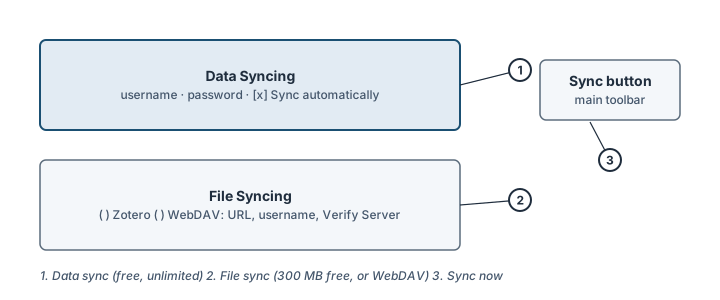
The Sync pane: data syncing (1), file syncing (2), Sync now (3). Illustration, not an actual screenshot.</figcaption> </figure>
Steps
- Create a free Zotero account at zotero.org if you don’t have one. It’s also your forum login.
- Enter it in Zotero: Settings → Sync → Data Syncing, enter your username and password, and leave Sync automatically ticked.
- Understand the split — this is the whole lesson:
- Data syncing (items, notes, tags, collections) is free and unlimited.
- File syncing (the PDFs themselves) needs storage: 300 MB free on Zotero storage, paid plans beyond that, or your own WebDAV server (personal libraries only — groups can’t use WebDAV).
- Choose your file storage: for a typical first-year library, the free 300 MB is enough; enable File Syncing → Zotero. Have hundreds of PDFs? Compare storage plans or configure WebDAV and click Verify Server.
- Sync, then verify on device 2. Click the circular Sync button in Zotero’s toolbar, then open zotero.org in a browser and sign in — your items should be there. On your second device, install Zotero, sign in with the same account, and sync.
- Never put the Zotero data folder in Dropbox/Drive/iCloud. The official docs are blunt: it is “extremely likely to corrupt your Zotero database”. Sync or a linked-files workflow — not a cloud folder on the data directory.
Check it worked
An item you save on device 1 appears on device 2 within a minute (or after clicking Sync), PDF included — and the sync error icon (next to the Sync button) never appears.
If it didn’t work
- Items sync but PDFs don’t → troubleshooting: PDFs or changes won’t sync across devices
- Storage quota warnings keep appearing → same flow, which covers quota and the reset-file-sync-history fix
- Zotero repeatedly asks to resolve the same conflicts → the flow covers the repeated-conflicts case; if it persists, the official forums with a Debug ID are the right route
Last verified against Zotero 10.0.6 documentation on 2026-10-25. Zotero's interface changes between versions — if a step does not match what you see, check the official documentation linked above and report the lesson via the “Report an outdated lesson” issue template.