Disclaimer: This is an independent learning project and is not affiliated with or endorsed by Zotero or its developers. Always check the official Zotero documentation for the latest instructions.
Save your first sources from the web
What you’ll do
By the end you’ll have saved your first three items from the web into Zotero — records with title, authors, year, and (usually) the PDF. This is milestone M1.
Why it matters
Manual entry is where good intentions go to die. The connector captures metadata and PDFs from journal pages, databases and news sites in one click — and saving clean metadata now prevents the citation-formatting problems documented later in this path.
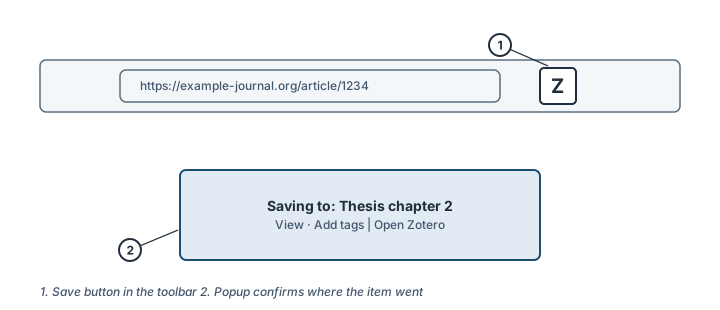
The save button (1) and the confirmation popup (2). Illustration, not an actual screenshot.</figcaption> </figure>
Steps
- Open a paper’s page in your browser — for example, a journal article’s abstract page (not the PDF view; the abstract page usually carries the best metadata).
- Click the Zotero save button in the browser toolbar. The icon changes to match what it detected: a journal-article icon on article pages, a book icon on book pages, a folder icon on pages listing several results.
- Check the popup. A small popup confirms which collection the item went to. If you have a collection selected in Zotero, that’s where it lands — you can change it in the popup.
- Save multiple results at once: on a search-results page (Google Scholar, a database), the button shows a folder icon. Click it, tick the results you want, and save them in one go.
- Save a plain web page when there’s no metadata: right-click the save button (in Safari, right-click the page) and choose Save to Zotero (Web Page with Snapshot).
- Verify the metadata before moving on. Click the saved item in Zotero and read the title, authors and year in the right-hand pane. Fix anything wrong here, not in your document later.
Check it worked
The item appears in My Library (or your selected collection) with authors and a year filled in, and — on most publisher pages — a PDF attachment appears under the item within a few seconds.
If it didn’t work
- Record saves but the PDF doesn’t attach (common on JSTOR and other databases) → troubleshooting: Saving fails — the PDF never appears
- “Zotero is unavailable” or nothing happens when you click save → troubleshooting: Saving fails
- Items save to the wrong place or metadata looks wrong → re-save from the article’s landing page rather than the PDF view; see the official docs on translators for known site quirks
Last verified against Zotero 10.0.6 documentation on 2026-10-25. Zotero's interface changes between versions — if a step does not match what you see, check the official documentation linked above and report the lesson via the “Report an outdated lesson” issue template.